
LoadPlan 3D
LoadPlan 3D calculates how
Loadsfit into a vehicle by solving a 3D packing problem. It visualises the result as an interactive 3D model, helping you verify vehicle capacity, optimise loading order, and spot issues before aTourbegins.
Overview
When you assign Loads to a Tour, you need to know whether they physically fit into the vehicle — and in what order they should be loaded. LoadPlan 3D answers both questions. It takes the dimensions and weight of each Load, runs a packing algorithm against the vehicle's container dimensions, and produces a 3D visualisation showing exactly where each Load is placed.
The result is an interactive 3D model you can rotate, zoom, and inspect from preset camera angles. Loads that could not be placed are flagged, and utilisation metrics (volume, weight, and loading metres) are displayed so you can assess how efficiently the vehicle is used.
Key highlights:
3D packing optimisation — Automatically calculates where each
Loadfits inside the vehicle container, respecting dimensions, weight limits, and stacking rulesInteractive 3D viewer — Rotate, zoom, and inspect the load plan from any angle, with preset camera views (top, side, front, back)
Stop-by-stop visualisation — For multi-stop
Tours, see how the vehicle looks at each stop asLoadsare picked up and deliveredPacking profiles — Choose between three profiles that balance capacity utilisation against ease of access
Utilisation metrics — See volume, weight, and loading metre utilisation at a glance
Unplaced load warnings — Immediately see if any
Loadsdo not fit into the selected vehicle
Where LoadPlan 3D is Used
LoadPlan 3D is available in several places across Orbit, each serving a different purpose.
Load Plan Viewer
Available in: Orbit MissionControl, Orbit Cockpit, Orbit Connect
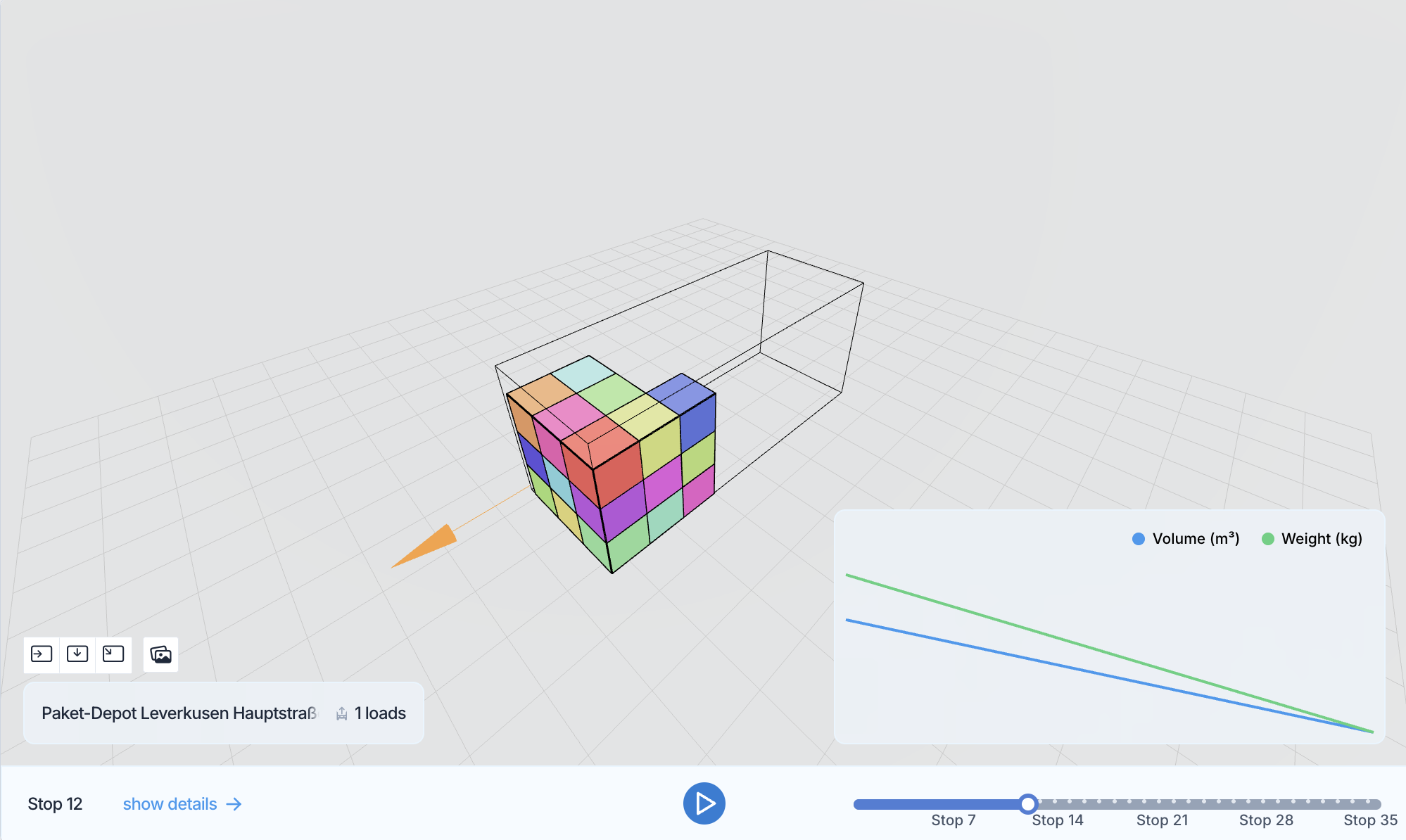
The Load Plan Viewer is available on the Tour detail page and shows the complete load plan for the assigned vehicle. You can:
1. Open the Load Plan Viewer from the Tour detail page
2. Switch between Tour mode (overall view of all Loads) and Stop mode (see the vehicle state at each individual stop)
3. Select individual Loads to highlight them in the 3D view
4. Use camera presets to inspect the plan from above, the side, the front, or the back
5. Toggle load animations to see how Loads are added and removed at each stop
6. Review utilisation graphs showing volume, weight, and loading metre usage across stops
In Stop mode, Loads being loaded at the current stop are highlighted differently from Loads being unloaded, making it easy to verify the correct loading sequence.
Drivers can also access the Load Plan Viewer for their assigned Tour in Orbit Cockpit on their mobile device, with full touch controls for rotating and zooming.
Load Plan Explorer
Available in: Orbit MissionControl
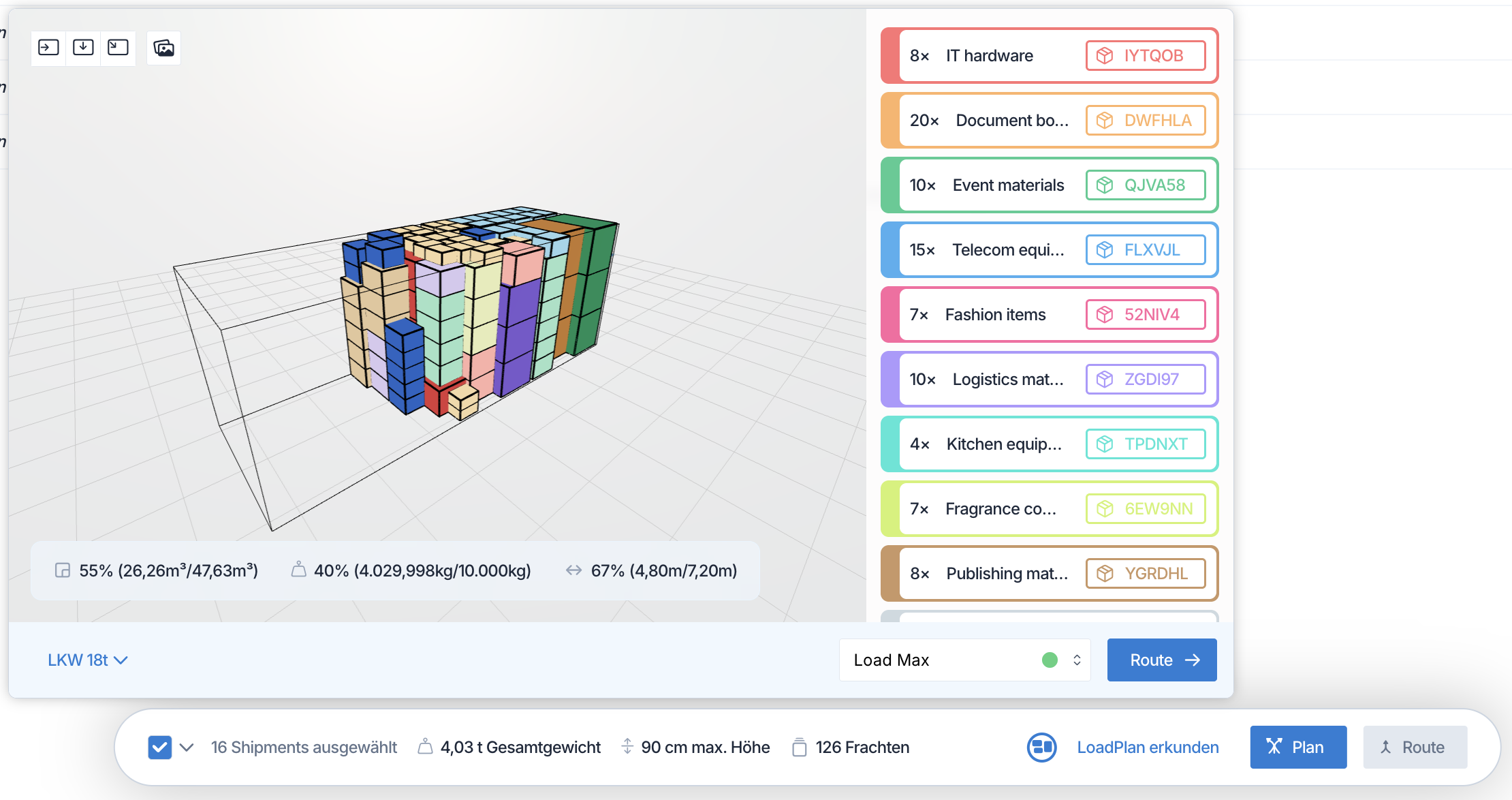
The Load Plan Explorer is available on the Shipments list and lets you explore how selected Shipments would fit into a specific vehicle before creating a Tour:
Select one or more
Shipmentsfrom the listOpen the Load Plan Explorer
Choose a
Vehicle Class, a specificVehicle, or enter custom container dimensionsSelect a packing profile (see below)
Review the 3D visualisation to check whether the
Loadsfit and how much capacity is used
If any Loads cannot be placed, they are listed separately so you can adjust the vehicle selection or split the Shipments across multiple Tours.
Packing Profiles
The Load Plan Explorer offers three packing profiles that control how Loads are arranged inside the vehicle:
Load Max — Maximum efficient utilisation of the available vehicle capacity. Loads are stacked wherever possible. Best suited for single-stop deliveries or situations where loading order is not a concern.
Easy Access — Last-in, first-out planning for simplified loading and unloading.
Loadswith the same recipient are stacked together, butLoadsfor different recipients are kept accessible without rearranging.Easy Access Plus — Last-in, first-out planning for simplified loading and unloading. No
Loadsare stacked at all. Ideal for fragile goods or situations where stacking is not permitted.
When comparing profiles, a utilisation difference indicator shows how much capacity usage varies between them. A green status dot indicates that all Loads fit into the vehicle under that profile.
Product Calculation
LoadPlan 3D can be used within product calculation to check whether Loads fit into specific vehicle containers during pricing. This allows products to factor vehicle capacity into their pricing logic — for example, to automatically select the smallest suitable Vehicle Class or to apply surcharges when a larger vehicle is needed. For details on configuring products, refer to the Products documentation.
Multi-Stop Tours and Loading Order
For Tours with multiple stops, LoadPlan 3D accounts for the loading and unloading sequence. The algorithm ensures that Loads to be delivered last are placed at the back of the vehicle first (last-in, first-out), so the driver can access Loads for the next stop without rearranging the vehicle.
When a Tour has complex stop sequences — for example, a pickup occurring after several deliveries while other Loads are still on the vehicle — the algorithm segments the Tour into loading phases and calculates each phase separately, carrying forward the positions of Loads that remain on the vehicle.
Utilisation Metrics
LoadPlan 3D calculates three utilisation metrics for each load plan:
Volume — The percentage of the vehicle's total volume occupied by placed
LoadsWeight — The percentage of the vehicle's weight capacity used (when a weight limit is defined for the vehicle)
Loading metres (LDM) — The percentage of the vehicle's floor length used, measured as the projected area of
Loadson the container floor
In Stop mode, these metrics are shown per stop, so you can see how utilisation changes as Loads are picked up and delivered along the route.
FAQ
Can I use LoadPlan 3D with custom container dimensions?
Yes. In the shipments list preview, you can choose a Vehicle Class, a specific Vehicle, or enter custom dimensions (length, width, height) and weight capacity for the container.
What happens if not all Loads fit into the vehicle?
Loads that cannot be placed are listed separately as unplaced loads. You can then choose a larger Vehicle Class, split the Shipments across multiple Tours, or adjust the packing profile.
Is LoadPlan 3D available on mobile?
Yes. Drivers can view the load plan for their assigned Tour in Orbit Cockpit with full touch controls for rotating and zooming the 3D model.
Can I see the load plan at a specific stop?
Yes. Switch to Stop mode in the load plan viewer to see the vehicle state at each individual stop, including which Loads are being loaded and unloaded.
Does the packing profile affect the load plan on the Tour detail page?
The profile selection is available in the shipments list preview. On the Tour detail page, the load plan is calculated based on the Tour configuration.
Can LoadPlan 3D be used in product pricing?
Yes. LoadPlan 3D can be integrated into product calculation to check vehicle fit and factor capacity into pricing logic. Refer to the Products documentation for configuration details.